Cubbie help
Get the most out of Cubbie
A quick guide to folders, tabs, the Ctrl K switcher, live status, rules and themes. Each one takes less than a minute to learn.
The basics
Four things you'll use every day.
 Folders
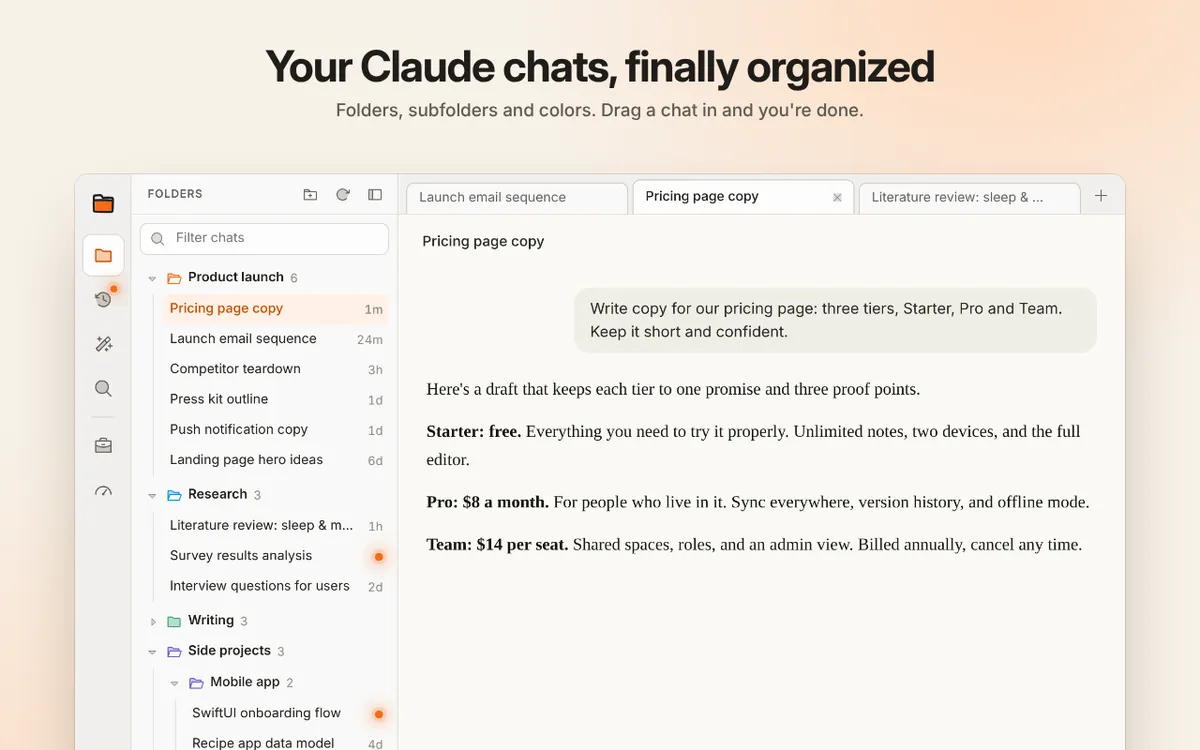
Drag chats into folders
Press + at the top of the panel to add a folder. Drag any chat onto it, or right-click a chat and pick Move to. Drop a folder onto another to make a subfolder, and right-click a folder to rename it, color it or set rules. New chats land in Unfiled until you file them.
Getting started Tabs and switcher
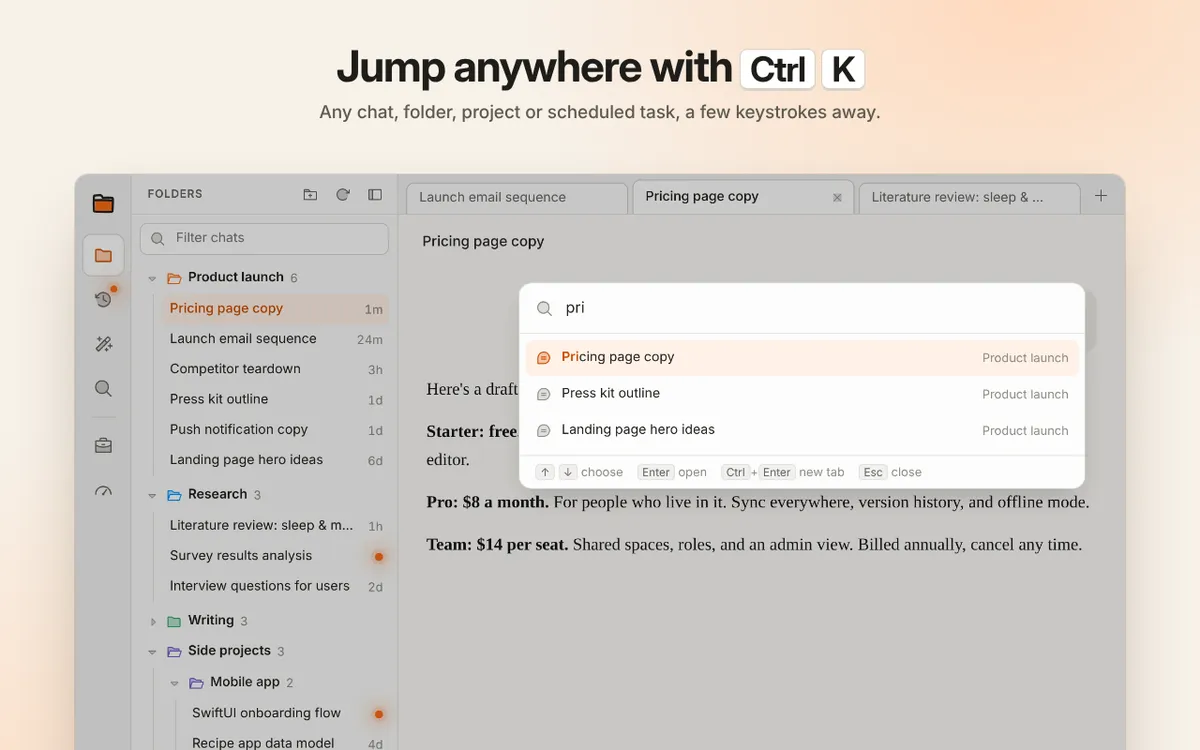
Jump anywhere with Ctrl K
Press Ctrl K (⌘K on Mac) and type a few letters to find any chat, folder, project or scheduled task. Enter opens it here, Ctrl Enter in a new tab. Middle-click a chat to open it in a tab; right-click a tab to pin it, so it stays put after a restart.
 Live status
Know when Claude is done
A chat glows orange while Claude writes, on its tab, its row and the Recents icon. When a reply finishes while you're elsewhere, the glow turns into a dot until you open the chat. With Pro, a desktop notification tells you too.
Notifications help Rules · Pro
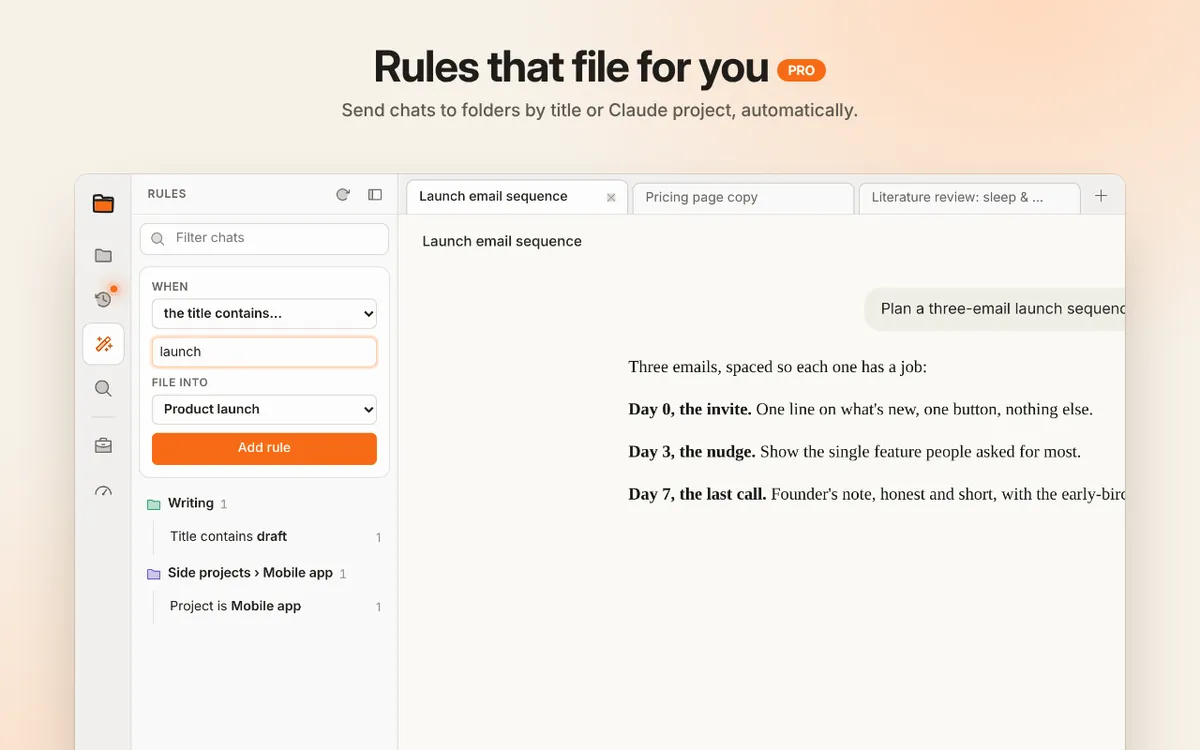
Let rules do the filing
Open Rules (the magic wand on the rail), pick a condition like "the title contains Ghost" and a folder. Matching chats in Unfiled move at once, and new ones are filed as they appear. A chat you move back to Unfiled yourself is left alone.
Get Pro
Make it yours
Themes, an app window and Claude Desktop.

Pick a theme
Open the palette icon on the rail. Claude, Sand and Night are free; Pro adds Slate, Sage, Mauve, Ink, Forest and Plum. A theme recolors Cubbie, Claude's chat and the artifacts panel together.

Install claude.ai as an app
In Chrome, open the ⋮ menu, then Cast, save and share, then Install page as app. claude.ai gets its own window and taskbar icon, with Cubbie inside it.

Keep Claude Desktop
Cubbie works in claude.ai in your browser. Your account and chats are the same in Claude Desktop, so keep it for local files and connectors and use Cubbie when you want folders and tabs.

Shortcuts and tips
Small things that save time.
Keyboard shortcuts
Ctrl K (⌘K): quick switcher. Enter: open. Ctrl Enter: open in a new tab. F2: rename the selected folder. Delete: move selected chats to Trash. Esc: clear the selection or close a menu.
Select and move many chats at once
Ctrl-click chats to pick several, or Shift-click for a range. Then drag them all, or use Move to and Trash in the bar at the bottom of the panel.
Resize or hide the panel
Drag the panel's right edge to resize it (double-click the edge to reset). Click the icon of the open view on the rail to collapse it, and any rail icon to bring it back.
Find scheduled tasks
Your claude.ai scheduled tasks appear in the Scheduled folder with when each runs next and how the last run went. Drag a task into any folder to keep it with related chats.
Restore a trashed chat
Trash only hides chats. Open Trash on the rail and drag a chat back into any folder. Nothing is ever deleted from Claude.
Can't find what you're looking for? Contact our support team
Still stuck?
Check the troubleshooting answers on the Support page, or email us. A real person reads every message, usually within a day.